Flip a House Controls
Movement, interact, tools, camera, mobile touch, and accessibility tips for Roblox flippers.
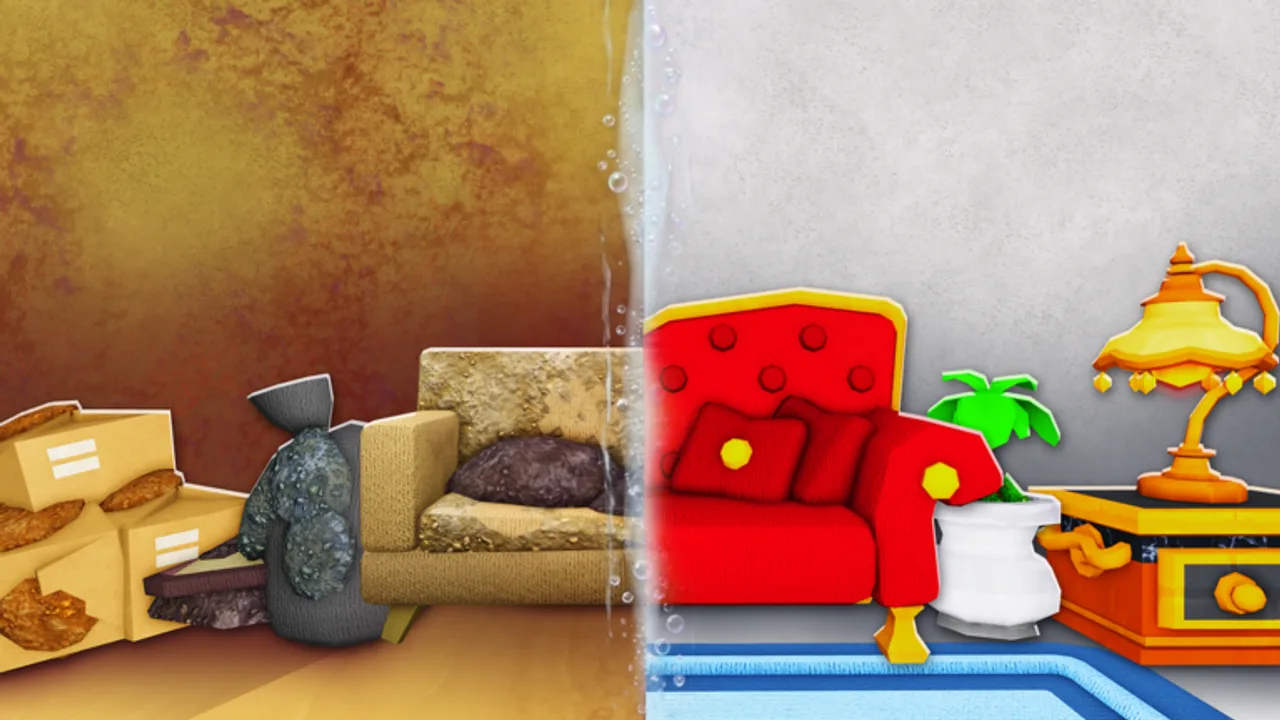
This controls guide covers how to move, interact, swap tools, and aim the camera while playing Flip a House! on Roblox. Prompts can differ slightly by device and client version—when the HUD shows a key or button, follow that first. Pair this page with Getting Started for the early loop and the Players Hub for platform context.
Movement basics
On PC, use the standard Roblox move keys (typically WASD) and Space to jump when a ledge or step needs clearing. Sprint behavior follows your Roblox settings if enabled. Keep movement short and deliberate inside cluttered rooms; slamming into trash piles can make interact prompts flicker.
On mobile, drag the left virtual joystick to walk. Avoid hugging walls while steering or the camera may fight you during vacuum passes. On console, left stick moves the avatar; click or modify stick behavior only if your Roblox accessibility options allow it.
Strafe more than you spin when carrying furniture—rotation belongs to the camera/placement controls, not frantic avatar turning.
Interact & prompts
Most Flip a House actions are proximity interacts: walk up to trash, a dirty surface, a furniture shop point, or a sell trigger until a prompt appears, then press the interact control.
- PC: commonly E or left-click when the prompt allows—trust the on-screen label.
- Mobile: tap the on-screen interact / contextual button when it lights up.
- Console: usually a face button (often X / Square equivalents on Roblox)—again, match the HUD.
Hold versus tap matters. Scrubbing and vacuuming often want sustained input across a stain, while picking up a trash bag may be a single press. If nothing happens, step back one stride, re-center the camera on the mess, and retry—clipped geometry is a common false fail.
Tools & loadout swaps
Your cleaning kit progresses from starter broom-style clears into scrubbers and vacuum-class tools. Open the in-game tool or inventory UI (backpack/hotbar patterns vary) and select the tool that matches the mess:
- Loose debris → sweeping / broom tools
- Stuck grime → scrub / wash tools
- Fine dust leftover → vacuum-class tools
Do not scrub what you should sweep first; tool order saves time. Upgrade priorities are ranked on the Tools Tier List, and surface habits live in Cleaning Tips.
When co-op partners shout “switch,” answer with the tool name so nobody triple-stacks the same vacuum lane.
Camera control
PC: move the mouse to look; scroll to adjust zoom if the client allows. Slightly zoomed-out views help spot ceiling or corner mess. Mobile: drag on open screen space to orbit; pinch only if your layout supports zoom without opening menus. Console: right stick looks; lower sensitivity if furniture placement oscillates.
Reset the camera if you clip inside a cabinet or stairwell—Roblox camera collide can hide prompts that are still valid from another angle.
Furniture placement inputs
After cleaning, staging uses carry → position → rotate → place:
- Approach the item or shop stand, interact to acquire it.
- Walk to the target room with short movements.
- Rotate in small increments until the piece aligns with walls and walkways.
- Confirm place; nudge if the collider rejects the spot.
PC mouse yaw is usually easiest for alignment. Mobile players should place large S-tier pieces first (see Furniture Tier List) before fiddly accents. Detailed sell advice continues in Furniture & Selling.
Mobile touch tips
- Play in landscape when possible for wider prompt visibility.
- Keep fingers clear of the interact button while steering.
- Clear center-floor trash before corner work so the joystick has space.
- If UI scale is tiny, raise it in Roblox settings before long scrub sessions.
- Take breaks; repetitive touch scrubbing fatigues thumbs fast.
Console comfort tips
- Rebind only through supported Roblox options—do not chase unsupported macros.
- Raise deadzones slightly if drift nudges you off stains.
- Use headset chat in four-player lobbies; vacuum audio buries quiet callouts.
Accessibility
Flip a House is a visual-mess fantasy. Helpful options:
- Motion: lower camera sensitivity; pause between rooms if you get dizzy.
- Hearing: enable captions/party text if you rely on co-op callouts.
- Color vision: track clear progress by prompt disappearance and room checklist habit, not stain color alone—follow the Flip Checklist.
- Motor: prefer tap interacts when holds are painful; swap to co-op roles that need less sustained scrubbing.
Roblox platform accessibility settings apply on top of experience UI—review them if inputs feel hostile.
Quick troubleshooting
| Symptom | Try this |
|---|---|
| Prompt missing | Reposition, adjust camera, ensure correct tool |
| Cannot place furniture | Rotate, check collisions, clean the tile first |
| Co-op desync feels off | Rejoin server; avoid stacking same interact |
| Mobile mis-taps | Landscape, larger UI scale, clearer floors |
Practice plan
Spend one short house focusing only on clean inputs: no shopping sprees. Then run a second house with furniture staging. Third session, add co-op roles. That ramp builds muscle memory faster than grinding large lots with messy controls.
Return to the Players Hub for platform notes, or jump into Getting Started to apply these binds on your first real profit loop.
Frequently Asked Questions
Quick answers for Flip a House players.
What is the interact key in Flip a House?
Follow the on-screen Roblox prompt. PC often uses E or click; mobile uses the contextual button; console uses the indicated face button.
Why won’t my vacuum clean a spot?
You may need a scrub tool first, or the camera/prompt is clipped. Switch tools, reposition, and retry.
Any mobile-specific advice?
Use landscape, raise UI scale, clear open floors before corners, and place large furniture before tiny décor.
Where should beginners go next?
Read Getting Started, then use the Flip Checklist each session so controls practice turns into profitable flips.